Advertisement

Friday, June 13, 2014

Played Around With My Beaglebone Black

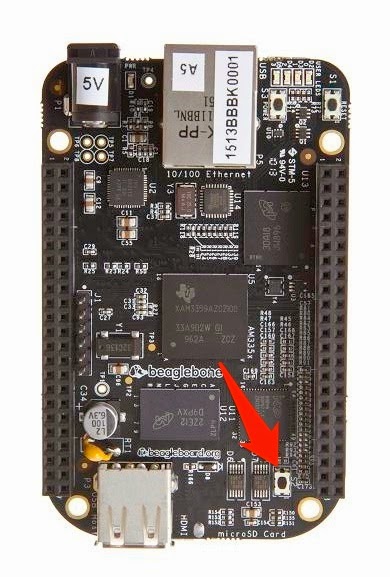
I was at the Milwaukee Makerspace for my weekly hobby time.  Tonight, I mainly spent time working on my Beaglebone Black.

It looks like the version of Debian Linux that I previously installed on the BBB already had Avahi installed and working.  The host name is beaglebone.local.  I was able to ssh to the BBB over the local network with no problem.

There are users named debian, kbecker, and hesa on the BBB.

Next, I used the dpkg-reconfigure tzdata program to set the time zone to central time .  It brought up a menu where I could select my time zone.

Next, I ran sudo apt-get update just to make sure everything is up-to-date.  

Finally, I added the hesa user to the sudoers file so it could have sudo access.

Now, the basic stuff is done and the BBB is ready to go.

The next step is to get python on the BBB and do some programming.

Adafruit has a python library for the BBB.  I'm not sure if there are others but I installed Adafruit's python library.  The command to install the library is:
sudo apt-get install build-essential python-dev python-setuptools python-pip python-smbus -y
The Adafruit page has some sample code that I played around with.  I was able to light an LED.  The next step is to get the HESA code working on the BBB.
I also started a 3D print of a base for the BBB.  It won't be done before I leave but hopefully, it will finish.

Monday, June 9, 2014

Worked on Grass Trimmers

I picked up a couple of gas powered grass trimmers that someone was throwing out a few months back.  One of them is a 15" Homelite Textron Model ST-155 20539a.  The other is a 17" Craftsman 25cc  model 358.796260.  Both trimmers need work.

The Homelite has the following problems:
  • Needs a new fuel line hose
  • The weed guard is broken
  • The primer button is missing.
One other weird problem with the Homelite is that there is only one hole on the gas tank.  It is for the gas line.  There is no hole for the primer line in the tank.  I don't know if there are other parts missing or if the gas tank on the Homelite is the wrong one.  I tried researching the parts on the internet but it is not clear how the primer line connects to the tank.  After watching a bunch of YouTube videos about fixing grass trimmers and doing other research without finding out anything helpful, I decided to move on to the Craftsman.

The Craftsman has the following problems:
  • Needs a new fuel line hose and fuel filter
  • Primer hose
  • New gas gap
  • Cover for spool
I bought the parts at the local Sears parts store and swapped out the bad parts on the Craftsman.  I mixed some gas and oil at a 40:1 ratio in a small gas container that I got and filled up the tank.  When I used the primer button to prime the tank, the button broke.  There is now a hole right in the middle of the button.  The trimmer will not start.  It might simply be because of the broken primer button but I am not sure.

Sears will not sell only the primer button.  You have to buy the entire carburetor kit.  That, with shipping, costs $25; hardly worth the cost.  I can't proceed until I get a new primer button.  I'm going to try to find one that might fit based on the diameter.  Maybe I can fix it.

Saturday, June 7, 2014

Printed a Raspberry Pi Platform

I was at the Milwaukee Makerspace last night and tried 3D printing a platform for my Raspberry pi.  This is probably the tenth time I have tried to print a platform for the Pi.  In previous attempts, either the filament would not stick to the surface, or the print would curl up, or the filament would get stuck on the roll.  This time, it finally worked.  I printed the platform on the Makerbot Replicator.  It took over three hours but I had no problems at all.  Joe B. was also at the 'space.  He printed the same thingy on the new Lulzbot Taz 3D printer.  I left before that print was done but it also had no problems.

I got the design for the platform off of Thingiverse.  The left side holds the raspberry pi.  The right side would hold a small breadboard.  It would be nice if there was a design that only had the left side for the rapsberry pi.

Below is my raspberry pi in the platform.  It snapped in and will stay in place if the platform is mounted vertically.  I think it will be a nice way to keep the pi from moving while working on projects.


Tuesday, June 3, 2014

Fixed False Positives on HESA

Lately, I've been having a lot of false positives from the Home Environmental Sensor Array.  I finally decided to investigate the problem.

First, I thought that maybe there was some current in the enclosure itself.  So, I found an old power cord and used the ground wire to connect the enclosure to the ground screw on a nearby power outlet.  That would probably not pass code but I think it is effective.  However, that did not solve the problem.  The program running on the raspberry pi kept immediately detecting a circuit and shutting off the power.

Next, I thought that the connectors I used for the external wires were touching the metal of the enclosure and closing the circuit.  So, I removed the connectors from the case and just let the wires hang.  That did not solve the problem.

Finally, I disconnected the external cable.  This time, the program did NOT detect electricity.  I suspected the external cable.  I re-connected the external cable to the circuit and the program immediately detected electricity and shut off the power.

Short-story-long, the external cable has some kind of short in it.  Maybe some water got inside the plug.

I found an unused length of electrical cable for a lamp and connected it as the external cable for the HESA.  Now, it goes for days without any false positives.

The lesson is that I need a better detection cable.

Friday, May 23, 2014

Added Array to HESA Python Code

While at the Milwaukee Makerspace tonight I decided to update the python code for my Home Environmental Sensor Array (HESA).  It gives false readings once a week or so -- telling me there is water in the basement when there is not.  I would like to know what readings it is seeing.  Ideally, I would write the readings to a database but for now, I am going to write the most recent readings to a web page.

The first thing the program changes do is record each of the readings for one cycle.  There are 1,000 readings per cycle.  Each reading is added to a list in python.  Here is the code to add the data to the list.
if GPIO.input(pinIn) == GPIO.HIGH:
  retHighCount += 1
  retTestNbr[circuitTimer] = 1
  if retHighCount > 500: 
    retResult = 1
  else:
    retTestNbr[circuitTimer] = 0

circuitTimer += 1
retTestNbr is the list variable.  A value of 1 means power was found.  A value of 0 means nothing was returned.

Every 10 minutes or whenever electricity is detected, the program will write the current data to the web page.  There are 1,000 readings per cycle.  So, the program will write 20 lines of 50 readings.  The readings should either be a 0 or a 1.  The web page is overwritten if if already exists.  Here is the code to do that.

 with open('/var/www/hesaStatus.htm', 'w') as webPage:
        webPage.write('<HTML>\n')
        webPage.write('<HEAD>\n')
        webPage.write('<TITLE>HESA Status</TITLE>\n')
        webPage.write('</HEAD>\n')
        webPage.write('<BODY>\n')
        webPage.write('<H1>Home Environmental Sensor Array Status</H1>\n')
        webPage.write('<b>Start date and time:</b> ' + strSDT + '<br>\n')
        webPage.write('<b>Current date and time:</b> ' + str(datetime.now()) + '\n')
        webPage.write('<p><b>Last water sensing status:</b> ' + str(wSS) + '.<br>\n')
        webPage.write('<b>High count:</b> ' + str(hc) + '.<br>\n')
        webPage.write('<b>Readings:</b><p>\n')
        rLoop = 0
        while (rLoop < 20):
            cLoop = 0
            while (cLoop < 50):
                webPage.write(str(tn[cLoop + (rLoop * 50)]))
                cLoop += 1

            webPage.write('<br>\n')
            rLoop += 1

        webPage.write('</BODY>\n')
        webPage.write('</HTML>\n')
 Next, I need to install the code on the Raspberry Pi that runs the HESA and see if it works.  Maybe I can narrow down why I am getting false readings.

Saturday, April 26, 2014

Two Weekend Garden Projects

I worked on two garden-related projects last night and today.  First, I built a raised garden box to replace my rotted out box.  I spent $57 on six 2" x 8" x 8 foot boards at Home Depot and took them to the Milwaukee Makerspace for assembly.  I cut two of the boards in half to make the four foot sides.  Then, I connected the boards in pairs, one on top of the other, with 2" x 4" scrap that I found at the 'space.

This morning, the kids and I connected the sides into a 4' x 8' rectangle, and replaced the old rotted out box with the new one.  It was a pretty simple project.

Next, I built two compost bins from wooden pallets.  I got the pallets last fall from a local business that was throwing them away.  Tim and I connected them with smaller pieces of wood and some screws.  The front pallets will be attached to the other pieces with old electrical wire.  That way, they can be easily removed so the compost can be turned.


Overall, it was a good day.


Saturday, April 19, 2014

Tested Motor PCB With RPi and Motor

Earlier this week, we assembled the Raspberry Pi Motor Controller Board (aka RTK RPi MCB) from Ryanteck, Ltd.  Today, I spent a few hours experimenting with controlling motors using the RPi and the RTK MCB.

RTK RPi MCB Basics
The documentation that is provided with the RTK MCB is pretty sparse.  Here are some things that I learned while putzing that I wish was in the documentation.

First, there are two ways that the RTK MCB can be attached to the RPi's pins.  When attached properly to the RPi, the board will mainly hang over the RPi.  See the picture to the right.  If the MCB is attached the wrong way, it will hang over the table.

Second, as the documentation says, the left-hand input on the J1 VCC2 terminal block is for positive power.  The right-hand input is for ground.  The positive input is on the left when you face the terminal block to insert the wires.

Next, the J2 and J3 terminal blocks are to connect to the motors. J3 is for motor one.  J2 is for motor two.  The circuit that connects to the terminal blocks works as follows:

  • GPIO 17 / Pin 11 on the RPi connects to the left-hand input on terminal block J3 
  • GPIO 18 / Pin 12 on the RPi connects to the right-hand input on terminal block J3
  • GPIO 22 / Pin 15 on the RPI connects to the right-hand input on terminal block J2
  • GPIO 23 / Pin 16 on the RPI connects to the left-hand input on terminal block J2
This is a bit confusing.  Say your motor has a red and a black wire.  If you plug the red wire into the left input on terminal J3 and send power out GPIO 17, it will spin the motor in one direction, for example clockwise.  Then, you plug the red wire into the left input on terminal J2 and send power out GPIO 22, it will spin the motor counter-clockwise.  It would make more sense if applying power to GPIOs 17 and 22 made the same motor spin the same way.

In order to power a motor, you have to set one of the pins HIGH and the other pin LOW on a terminal block.  Setting one pin HIGH but not setting the other pin will not work.

Finally, I have no idea what pin headers J4, J5, and J6 are for.  The are labeled 3V3, GND, and I2C respectively.  The documentation does not explain their purpose and they are not needed to run the motors.  It would be nice to have a circuit diagram for the PCB.

Power Supplies
The manual for the MCB says that the board will accept 4.5v to 12v power supplies to power the motor.  I first connected a 9v battery to the MCB.  However, the actual output power was about 4.5 volts.  Not sure why the board does not pass more power through to the motor.

I connected a 12v, 200mA power supply and it worked much better.  More on that below.

Trying to run two motors at the same time seems to make each motor run slower than just powering one motor.  Maybe a PSU that put out more amps would help in this case.

Python Code
I spent a lot of time working on python code to drive the motors.  I had a program from a website that had a circuit driving a motor through a transistor.  I used it as a base and modified it to have the following features:

  • accept inputs for the motor to power (1, 2, or both), the time the motors will run, and the amount of power to send to the motors
  • power one or both of the motors for whatever length of time the user specifies
  • spin the motor first clockwise for one second.  Then, counterclockwise for 1.5 seconds.  Repeat for the allotted time.
  • control how fast the motors spin using pulse width modulation.
Here is a link to the program I used to control the motor.

Testing with the Auger
Now that the MCB is assembled and the python program works, we did some testing with the auger.  The first test was to try to push food through a 2" tube.  The 9v battery was the power source.  Unfortunately, it would not push much food through the tube.  Sometimes, it would not spin at all.

We tried using a smaller, 1" tube.  The motor would not spin the auger at all with food in the tube.  We changed the program so it spun the motor clockwise for 5 seconds instead of 1 second.  That did nothing.

Next, we connected a 12v, 200mA power supply as the motor power source.  The motor had no problem pushing food through the 2" tube with this much power.  We played with the time and power settings.  It looks like the best settings are to run the motor for 10 seconds at 75% power.  This will push the right amount of food into the bowl.

One problem is that the screw that is supposed to keep the motor's shaft in the connector is not tight enough to hold the shaft.  A piece of the allen wrench used to tighten the screw broke off in the screw.  Now, it cannot be removed.  I'm not sure how I will remove it but it needs to be fixed to continue experimenting .

It would also be nice to have something to hold the motor down while testing.  I'll have to build something.