Advertisement

Saturday, January 3, 2015

Moteino Node Talking to Host

After about two weeks off for the holidays, I spent time at the Milwaukee Makerspace working on the Moteinos for my Home Environmental Sensor Array.

3D Print of a Battery Holder
As part of the node solution for the HESA, I want to have a complete stand-alone package that includes a holder for the battery.  Also, I want to have 6v battery for the power supply since the Moteino needs at least a 3.2v input.

I have a 6v Lithium battery from Energizer.  I made a case for it but it is not ideal and not reproducible.  I found a Thing on Thingiverse to 3D print a holder for a Panasonic Lithium battery.

I printed the holder on the Cube Pro Trio 3D printer at the Makerspace.  The printer is very easy to use.  I was hoping it would be more reliable than the other printers we have but my first print failed.  I printed the holder in draft mode and it finished but the corners pealed up a bit.  Also, I found out that the Panasonic battery is longer than the Energizer and the terminals are in different spots.  So, I won't be able to use the holder and will have to find a different solution.

On the plus side, I learned how to use the CubePro Trio printer.  This is a professional-grade 3D printer that should make high quality prints.

ACK Testing
The last time I played around with the Moteino, the node was sending data to the host but the node was never getting an ACK back from the host.  I tested combinations of all three Moteinos with the same results.  I posted something on the Moteino forum and the response was that it should work. I finally got back to testing the ACK feature and was able to get it working -- sort-of.

I think the original problem is that I did not have the antennas attached to the Moteinos.  I soldered antennas onto all three Moteinos, and they now send and receive ACKs properly.

However, this gets more and more unreliable as the distance between the node and host increases.  When the distance is less than 20 feet, the ACKs are almost always received.  At 50 feet, ACKs are received about 50% of the time.  If I go over 100 yards away, almost no ACKs are received.

I posted a message on the Moteino forum to see what the problem is.  However, I also decided that I don't care about ACKs for the HESA.  For now, I can continue without this feature.

HESA Node
Finally, I created a sketch for a node on the HESA network.  The sketch will read and transmit the following information to the host:
  • Notification that it is on-line on bootup
  • Battery voltage
  • Temperature from the RF69 chip or from a DHT sensor if installed.
  • Humidity from DHT sensor if installed
The code is flexible enough to request ACKs or not when sending data.  The device will also sleep between sends.  This should make the battery last longer.

The next step is to connect the host to a Raspberry Pi and have the Pi read the serial inputs.  Then, I need design a circuit board and complete solution for the node.  Finally, I need to make the HESA python program on the RPi send node data to the SQL database.


Saturday, December 20, 2014

Power Monitoring with the Moteino -- Attempt #2

This weekend at the Milwaukee Makerspace, I continued trying to get my Moteinos to communicate to each other.  I want to get a node to send its power level to the host.  I performed a number of tests and eventually accomplished the goal.

Basic TxRx Test
First, I numbered the Moteinos 1, 2, and 3.  Each Moteino was setup at a frequency of 915mhz.  The high power setting for the RFM69HW was set on all Moteinos.  For the first test, I opened the serial terminal window in the Arduino IDE on each Moteino so I could see the messages it was sending.  For the other tests, the terminal was only on the Receiver.

The test involved uploading the TxRxBlinky sketch on each Moteino -- one as the Receiver, and one as the Sender.  I hooked a button up to the Sender.  Once both Moteinos were powered up, I pushed the button on the Sender.  This caused the LED on the Receiver to change state -- on to off or off to on.  The Receiver also sends some text to the serial monitor.

SENDERRECEIVERRESULTS
M3M2Passed
M3M1Passed
M1M2Passed
M1M3Passed
M2M1Passed
M2M3Passed

All tests passed.  All Moteinos can both send and receive.  Also, they all operate with either the USB as a power source or the Lithium 6v battery as the power source.

Gateway / Node Test
For the next test, I used the Gateway / Node sketches from LowPowerLab.  The Gateway sketch was loaded on the Receiver Moteino and the Node sketch was loaded on the Sender Moteino.  All Moteinos were set at 915mhz frequency.  The high power setting was set on all Moteinos.

Before testing a pair of Moteinos, I loaded the Node sketch on one Moteino and watched what happened with the serial monitor.  The Moteino outputted exactly what it was supposed to.

Next, I uploaded the Gateway sketch to a Moteino and started testing.

TestGatewayNodeResults
1M1M2Passed
2M3M2Passed
3M3M1Passed
4M2M1Passed
5M1M3Passed
6M2M3Passed

All tests passed.

Custom Node Test
Now that I know all of Moteinos can talk to each other, I tested a custom node program.  It is set to transmit at 915mhz.  The high power setting for the RFM69HW is set.

The custom program is a modified version of the Node sketch from LowPowerLab.  The sketch reads the voltage from the Moteino and transmits it to the host.  (More information about the code to read the voltage is in this post.)

I had the same problem with the sketch that I had last week.  If the Node program tries to read the voltage using the readVCC function, then tries to use the radio.sendWithRetry function, the Moteino appears to reboot--it is re-running the setup function.  If I comment out the line that calls readVCC, the rest of the code processes normally.  However, the send line prints the message indicating it failed.  

After a lot of testing, I realized that the failure message I am getting is always there -- even with the code that comes with the Moteino.  I ran my Node program and the Host displayed the voltage from the Node.  The code works even though the failure message prints.  I don't know if there is something wrong with the code or if I don't understand how the read.send function is supposed to work.

I don't know why the Moteino was rebooting.  I did fix that problem by starting over with the original Node program and adding my code bit by bit.  The problem did not re-occur.  Maybe I had some invisible characters in the code.

Finally, I tested the voltage that is read by the node.  I connected a variable power supply to the power input on the Node.  This let me vary the input voltage.  I started at 6 volts and slowly turned the voltage down.  Sending any voltage over 3.2 registers as 3349 millivolts.  Once the voltage was turned down to 3.2 volts, the device read 3205 or 3196 millivolts.  When the input got down to 3.1 volts, the node stopped transmitting.  So, I will be able to use this code to monitor my battery's voltage.

One of the next steps is to understand how the node and host communicate.

  • Can the node sleep until the host calls it?  
  • If the node sends data to the host, will it get lost?  Is there a way to know for sure?
  • How do we make the device truly low-power?
  • What does the Ack do?
Another step is to connect the host to a Raspberry Pi and have the Pi read the serial inputs.

RPI serial console: http://elinux.org/RPi_Serial_Connection

+Moteino
#Moteino

Sunday, December 14, 2014

Possible Smoked Moteino

As I mentioned in my last post, I inadvertently plugged power into the GND pin on one of my brand new Moteinos.  There was a small puff of smoke and I quickly unplugged the power.  However, I had a bad feeling that I just ruined my $20 device.

I tested the Moteino to see if anything still worked.  First, I plugged in the FTDI adapter and used a USB cable to connect the Moteino to my PC.  The Arduino IDE software saw the board.  I uploaded the "Fade" example sketch to the Moteino.  It worked.

Next, I loaded the TxRxBlinky example sketch for the Moteino.  I was able to use the Moteino as a Sender device.  I assume that means that the transceiver is also working.

Finally, I used a multimeter to check the voltages.  The Lithium battery I had hooked up was sending 6.27 volts to the Moteino VIN pin.  The 3.3 pin on the Moteino was putting out 3.31 volts.  This means that the regulator in the Moteino is also working.

I think everything is working.  I'm going to try using this Moteino as the main receiver on my Home Environmental Sensor Array.

+Moteino
+Microcontroller
+Arduino
#Moteino, #Microcontroller, #Arduino

Saturday, December 13, 2014

Testing Moteinos

This blog post is covering my last two weeks of activity on the Moteinos for my Home Environmental Sensor Array.  Topics include

  1. Power supply experiments
  2. Attaching a power supply to a Moteino node
  3. Testing multiple Moteinos

Power Supply Experiments
I spent a good deal of time trying different ways to power the Moteino.  I was hoping that I could use a 3v Lithium battery as a power source.  That way, I could have an easily replaceable and cheap power source.  However, the coin cell battery I used did not appear to provide enough power to run the Moteino.

Next, I tried a 3.6v Lithium battery that I found in the battery box at the Makerspace.  It put out about 3.6 volts on its own.  After connecting it to the Moteino, I used a multimeter to see how many volts were going into the Moteino.  It registered at about 1.4 volts.  Not sure what is happening but this battery does not provide enough power for the Moteino either.

Finally, I tried using a 6v lantern battery as a power input.  That worked better.  When I tested the voltage with a multimeter, it registered 6.23 volts.  After I connected the battery to the Moteino, I tested the voltage by putting the test leads on the GND and VIN pins on the Moteino.  It registered 6.17 volts.  Since the Moteino has a built-in power regulator that limits the voltage to 3.3 volts, this is more than enough power.

In order to power nodes, the Moteino needs a power source that delivers between 5-9 volts.  The two options are a 6v Lithium battery or a 9v NiCd battery.  I would prefer the smaller battery because it will waste less energy when the Moteino converts the voltage to 3.3 volts.

Attaching a Power Supply to a Moteino Node
Now that I know how much power I need to supply, the next task is to figure out how to attach power to a Moteino that will operate as a stand-alone node.

I bought a 6v Lithium battery as an external power source.  It is just a bit bigger than a 9v battery.  Also, the power ports are recessed.  This makes it difficult to attach wiring to the battery.

My first idea for a reliable power storage solution for the 6v battery was to re-use an existing 9v battery container.  I found an old clock radio on the hack rack at the Milwaukee Makerspace.  The radio had a space for a 9v battery built-in to one part of the plastic case.  I cut out the 9v battery compartment from the case.

I settled on the idea of using screw heads to connect to the recessed battery terminals.  First, I cut a small piece of balsa wood to fit into the bottom of the compartment.  The wood is just a bit smaller than the compartment.  The wood is just big enough to not move around.  Also, when the battery is inserted into the compartment, it will keep the wood from moving.

Next, I put two screws through the wood and cut off the extra length of each screw with the metal bandsaw.  Finally, I attached wires to each screw.  In hindsight, I should have put the aluminum strips on the top of the wood.  That would have helped the conductivity of the wires to the screws.

Putting the battery into the compartment so it has good contact with the screws is a bit tricky since I can't really see what is going on.  However, once the battery is in properly, it delivers 6v.  I can connect the wire leads either to a prototype board or to input pins on a circuit board.  Although this does work, it is not an ideal solution.  Ideally, I would like a solution that works as easily as traditional battery connectors.  Either I could rig up a cap like 9v batteries have or I need a more cozy container that is a better fit for the lithium battery and makes a good connection every time a battery is inserted.  Maybe I could 3D print a container.

Also, I was testing the battery with one of my Moteinos and I inadvertently attached the positive wire to the GND pin on the Moteino.  The Moteino started smoking.  I immediately pulled out the wire but I don't know what damage was done.  When I connect the Moteino to my computer with the FTDI cable, it powers up.  The Arduino IDE client sees the device.  I uploaded a sketch to the Moteino that made an LED blink.  I still need to test the RF device.  If that works, the Moteino may not have been damaged at all.  That would be a blessing.

Testing Multiple Moteinos
I purchased two more Moteinos -- one for my first node, and one for backup or the second node.  The

Moteino site has a section on programming the Moteino.  One of the Arduino sketches allows you to test a receiver / sender pair of Moteinos.  When you press a button connected to the sender Moteino, it sends a signal to the receiver that toggles an LED -- if it is off, it turns on, and vice-versa.

I was able to successfully test this with two of the Moteinos.  Now, I know a bit more about using the Moteinos.  Next, I need to figure out how to connect the receiver Moteino to my Raspberry Pi.  Another next step is to write a sketch to read something on the node and send it to the receiver Moteino.

Friday, November 28, 2014

Power monitoring with the Moteino -- Attempt #1

This week, in my regular time at the Makerspace, I experimented with the Moteino I recently purchased.  I want to use the Moteino as a temperature sensor in my Home Environmental Sensor Array (HESA).  One thing I would like the sensor to do is measure the voltage coming from the battery and report it back to the host.  This way, I will know when a battery on one of the sensors is about to die.

The Moteino is fully compatible with an Arduino UNO.  Vishal from the 'space told me that the Arduino has the ability to determine the incoming power.  There is an internal reference voltage that always measures 1.1v.  This reference voltage can be used to more accurately measure the input voltage to the Arduino.  Here is a web page that talks about this in more detail.  That web page also has code to measure the input voltage.  Below is the code that I used to measure the voltage on my Moteino.  The output consistently read 3369 millivolts.
long readVCC() {  // Read 1.1V reference against AVcc  // set the reference to Vcc and the measurement to the internal 1.1V reference  #if defined(__AVR_ATmega32U4__) || defined(__AVR_ATmega1280__) || defined(__AVR_ATmega2560__)    ADMUX = _BV(REFS0) | _BV(MUX4) | _BV(MUX3) | _BV(MUX2) | _BV(MUX1);  #elif defined (__AVR_ATtiny24__) || defined(__AVR_ATtiny44__) || defined(__AVR_ATtiny84__)    ADMUX = _BV(MUX5) | _BV(MUX0);  #elif defined (__AVR_ATtiny25__) || defined(__AVR_ATtiny45__) || defined(__AVR_ATtiny85__)    ADMUX = _BV(MUX3) | _BV(MUX2);  #else    ADMUX = _BV(REFS0) | _BV(MUX3) | _BV(MUX2) | _BV(MUX1);  #endif     delay(2); // Wait for Vref to settle  ADCSRA |= _BV(ADSC); // Start conversion  while (bit_is_set(ADCSRA,ADSC)); // measuring   uint8_t low  = ADCL; // must read ADCL first - it then locks ADCH    uint8_t high = ADCH; // unlocks both   long result = (high<<8) | low;   result = 1125300L / result; // Calculate Vcc (in mV); 1125300 = 1.1*1023*1000  return result; // Vcc in millivolts}
void setup() {  // initialize serial communication at 9600 bits per second:  Serial.begin(9600);}
void loop() {  float voltage = readVCC();  // print out the value you read:  Serial.println(voltage);  }
BTW, after uploading the program to the Arduino, I opened the serial monitor by clicking on Tools, Serial Monitor.  The serial monitor displays the output from the Arduino.

Next, I wanted to see what the voltage would be from an external power source, as opposed to the Moteino getting power over the USB cable.  I connected 3.5v power from an adjustable power supply to the VIN pin on the Moteino.  The voltage displayed by the program never changes from 3369 millivolts.  I am not sure if that is because the Moteino was still taking power from the USB or if the built-in power regulator works with any power input.  

I plugged my Arduino Uno into the USB port on the computer and uploaded the script.  It consistently reported 5068 millivolts.  Adding 3.5v power from the external power supply on VIN did not change the readings.

I need to figure out how to get the Arduino or Moteino to send data back to my computer or maybe to a Raspberry Pi without using a USB cable.

Saturday, November 22, 2014

Started Working on Moteino Wireless Sensor Node

The Home Environmental Sensor Array is basically where I want it to be at this point.  It will:

  • detect water leaks and turns on a backup pump if water is found;
  • measure temperature and humidity in my basement;
  • write data to a SQL database on the internet;
  • send emails if it detects problems and send an "all clear" message when problems clear
The one thing I would like to do before moving on is have it record data locally if the internet is down and write it to the database after the internet connection is restored.

HESA Phase 2
However, I would also like to start on to the next phase of the project.  Originally, I thought that would mean adding an LCD screen and blinking lights as well as more sensors connected to the Raspberry Pi or Beaglebone Black.  But as my Maker skills have grown, I have gotten more ambitious.  Now, I would like to build wireless sensor nodes that connect back to the RPi base.  The nodes would collect data for things like temperature in rooms around my house and outside, monitor the freezer in the basement, etc.  Ideally, I will have a true network of sensors all around my house.  

Moteino Introduction
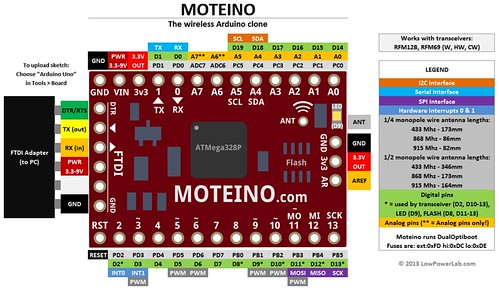
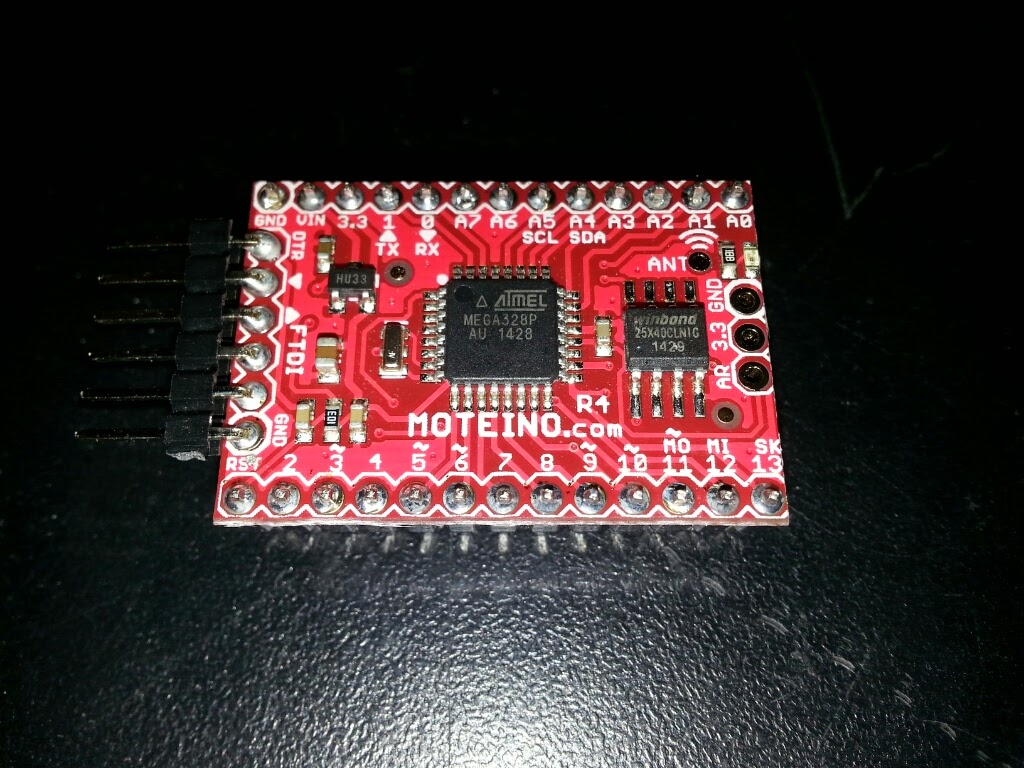
To get started on the wireless network, I purchased a Moteino. A Moteino is "a low cost low-power open-source wireless Arduino UNO development platform clone" that also has a HopeRF RFM69 transceiver.  My initial idea is to make a stand-alone sensor using the Moteino and a DHT22 temperature sensor.  Since the Moteino is an Arduino UNO clone, I can write a script to have it record the temperature in a specific location and send the results wirelessly back to my Raspberry Pi every few minutes.  (More about that later.)

The Moteino is made by LowPowerLab.  They also sell the Moteino and many other parts.  I bought one Moteino to start with along with the flash memory add-on, some header pins, and an external FTDI adapter so I can connect the Moteino to my PC with a USB cable.  (I suppose I could have made my own FTDI cable.  I researched making one and it seems too hard.  Now that I have the adapter, I can use it with any Moteino that I buy in the future.)  The Moteino comes with a strip of wire cut to the right length to serve as an antenna.  Finally, I also bought an extra HopeRF RFM69 transceiver that I would like to connect to my RPi.  (More on that later.)

Assembling the Moteino
I was at the Milwaukee Makerspace and used the awesome resources at the 'space to assemble the Moteino.  There is not much assembly required.  Basically, I just soldered the header pins to the board.  I am not sure if there is a side of the Moteino that is the top but I chose the side with the RF69 transceiver as the bottom.  This means that the pins that will plug into the breadboard or circuit board are on the transceiver side of the board.  I put the side pins for the FTDI adapter through the holes from the top of the board.

I put solder flux on the holes where the solder would go.  Flux is said to make the solder flow better.  One thing that makes soldering header pins easier is to put the pins into a breadboard and then set the board on top of the pins.  The pins are straight and will not move while I am soldering.  Soldering the pins is pretty easy.  I heat up the pin for a few seconds then touch the solder to the iron.  The solder naturally seems to flow around the pin.  Just make sure the hole around the pin is completely filled.  One caution is: heating the pin for too long might damage the board or the breadboard.

After soldering all of the connections, I used a multimeter to test for shorts.  I set the multimeter to test for resistance.  Then, I put one lead on one pin, and the other lead on the pin next to it.  If the pins are connected by bad soldering, the resistance would go to zero.  I did not find any shorts.  Huzzah!

The picture below shows the FTDI adapter from LowPowerLab connected to the Moteino.  The adapter makes it easy to connect a PC to the Moteino.  The Arduino IDE application sees the Moteino as an Arduino Uno.

Moteino Software
The LowPowerLab website has a lot of good information about the Moteino.  The guy who made the Moteino also has Arduino programming libraries on Github.  The website has good information that I will not repeat here.

One thing I had to do was put the Arduino files in the proper place.  I use a Linux laptop as my Maker device.  So, my Arduino sketches are in the /home/kbecker/sketchbook folder.  I moved the Moteino sketch folders into the libraries folder in the sketchbook folder.  One thing I learned is that it does not matter what the name of the sketch folder is as long as it is in the libraries folder.  I renamed the sketch folders so they start with "Moteino_".  I was able to compile one of the RFM69 sketches.

Next Steps
In order to test the Moteino, I need another RFM69 transceiver.  I did buy an RFM69 with the intention of connecting it to my Raspberry Pi.  However, I can't find much support for that on the internet.  So, I will have to figure it out myself.  Physically connecting the hardware will probably not be that hard.  The difficult part will be writing the software for the Pi to connect to the transceiver.

Another idea in the short-run would be to connect the RFM69 to an Arduino Uno.  Then, I can use the Moteino sketches on both the base and the node just to make sure it works.

Finally, I would like to design a board for the node.  The board would include the Moteino, a coin battery holder for power, connections for the sensor (DHT22 on the first one), and (if I can figure it out), a circuit to measure the power level of the battery.

I'll keep posting as I make progress.  I'll also add a new project on my Makerspace wiki page.

Friday, November 21, 2014

Electric Razor Fixed

We have a Remington Precision electric razor that my wife uses to cut the kid's hair.  The other day it started acting up.  Wiggling the wire would make it turn on or off.  Obviously, there was a break in the wire.

I was at the Milwaukee Makerspace tonight and brought the razor to repair.  It took me about an hour to do the work but I think I fixed it.

There is only one screw holding the case together.  After removing the screw, the case comes apart with a bit of coaxing.

One of the wires on the power cable connects directly to the power switch.  The other wire is connected to a wire from the razor via a crimp connector.  The first step was to de-solder the wire from the power switch.  I could not find any de-soldering wick so I just applied some heat and forced the wire off.

Rather than cut the wires going into the connector and shortening the one from the razor, I used a vise to expand the connector and remove the wires.  That was surprisingly easy.

After disconnecting the power cable from the razor, I cut the wire just below where I thought the break in the cable was.  Next, I stripped about one inch off of the end of each cable.  The existing cable was tied in a knot that looked like a pretzel.  I tied the end of the remaining cable into a similar knot.

The final steps were to reconnect the individual wires to the switch and the razor.  I soldered one wire to the switch.  The other wire was connected to the wire from the razor.  I was able to use the original connector and re-crimp it.

I tested the razor and it appears to work!  Looks like I saved $30 by fixing it myself at the Makerspace.